Showing posts with label CorelDRAW. Show all posts

Sunday, January 4, 2026

கம்ப்யூட்டர் Format செய்தாலும் Fonts மிஸ் ஆகாது! - முழுமையான Font Backup & Restore வழிகாட்டி

கம்ப்யூட்டரை ஃபார்மட் செய்தாலும் Fonts மிஸ் ஆகாது! முழுமையான பேக்கப் மற்றும் ரீஸ்டோர் வழிகாட்டி (The Ultimate Guide to Font Backup & Restore)

கம்ப்யூட்டரை ஃபார்மட் செய்தாலும் Fonts மிஸ் ஆகாது! முழுமையான பேக்கப் மற்றும் ரீஸ்டோர் வழிகாட்டி

ஒரு கிராஃபிக் டிசைனராகவோ, DTP ஆபரேட்டராகவோ அல்லது வீடியோ எடிட்டராகவோ இருக்கும் நமக்கு, கம்ப்யூட்டர் என்பது ஒரு உயிர்நாடி போன்றது. பல வருடங்களாகச் சேகரித்த அரிய ஃபான்ட்கள் (Fonts), பிரஷ்கள் (Brushes), மற்றும் பிளக்-இன்கள் (Plugins) என நமது பொக்கிஷங்கள் அதில் நிறைந்திருக்கும். ஆனால், ஒரு நாள் கம்ப்யூட்டர் வேகம் குறைகிறது, அல்லது வைரஸ் தாக்குகிறது என்று முடிவெடுத்து, விண்டோஸ் OS-ஐ புதிதாக இன்ஸ்டால் செய்கிறோம் (Fresh Installation).

OS இன்ஸ்டால் ஆன பிறகு, கம்ப்யூட்டர் புதிய வேகத்துடன் இயங்கும். உற்சாகமாக நம்முடைய பழைய CorelDRAW அல்லது Photoshop டிசைன் ஃபைல்களைத் திறப்போம். அந்த நொடியில் நம் உற்சாகம் அனைத்தும் வடிந்துபோகும் ஒரு செய்தி திரையில் தோன்றும்:

"Missing Fonts" அல்லது "Font not found on system"

CorelDRAW மென்பொருளில் 'Missing Fonts' என்ற பிழைச் செய்தி தோன்றும் காட்சி.

படம் 1: ஒரு டிசைனரின் மிகச்சிறந்த தலைவலி - "Font Missing Error"

இந்த ஒரு பிழைச் செய்தி, நமது பல மணிநேர உழைப்பை வீணாக்கக்கூடும். அந்த குறிப்பிட்ட டிசைனில் நாம் பயன்படுத்திய ஸ்டைலான தமிழ் ஃபான்ட்டோ, அல்லது ஆங்கில ஃபான்ட்டோ இப்போது இல்லை. அது என்ன ஃபான்ட் என்று தேடிக் கண்டுபிடித்து, மீண்டும் டவுன்லோட் செய்து இன்ஸ்டால் செய்வதற்குள் போதும் போதும் என்றாகிவிடும். சில நேரங்களில் அதே ஃபான்ட் மீண்டும் கிடைக்காமலே கூட போகலாம்.

இந்தக் கட்டுரையில், இதுபோன்ற "Font Missing" பிரச்சனைகளுக்கு ஒரு நிரந்தரத் தீர்வை விரிவாகப் பார்க்கப் போகிறோம். OS மாற்றுவதற்கு முன்பு ஃபான்ட்களை எப்படி ஒரு ஃபைல் கூட விடாமல் பேக்கப் (Backup) எடுப்பது, மற்றும் புதிய OS-ல் அவற்றை எப்படி சரியான முறையில் இன்ஸ்டால் (Restore) செய்வது என்பதை அக்குவேறு ஆணிவேறாக அலசுவோம். இது 2500 வார்த்தைகளுக்கு மேல் கொண்ட ஒரு முழுமையான வழிகாட்டி. பொறுமையாகப் படியுங்கள், உங்கள் டிசைனிங் வாழ்க்கையை இது எளிதாக்கும்.

பகுதி 1: ஏன் இந்த "Missing Font" பிரச்சனை வருகிறது? (அடிப்படையைப் புரிந்துகொள்வோம்)

பிரச்சனைக்கான தீர்வைத் தேடும் முன், பிரச்சனை ஏன் உருவாகிறது என்பதைப் புரிந்துகொள்வது அவசியம்.

ஃபான்ட் என்றால் என்ன?

நாம் நினைப்பது போல ஃபான்ட் என்பது வெறும் எழுத்து வடிவம் மட்டுமல்ல. அது ஒரு சிறிய மென்பொருள் (Software). ஒவ்வொரு ஃபான்ட் ஃபைலுக்குள்ளும் (.ttf அல்லது .otf) அந்த எழுத்துக்கள் எப்படித் தெரிய வேண்டும், போல்ட் (Bold) ஆகும்போது எப்படி இருக்க வேண்டும், இரண்டு எழுத்துக்களுக்கு இடையே எவ்வளவு இடைவெளி இருக்க வேண்டும் போன்ற ஆயிரக்கணக்கான கட்டளைகள் இருக்கும்.

டிசைன் சாஃப்ட்வேர் எப்படி ஃபான்ட்களை நினைவில் கொள்கிறது?

நீங்கள் CorelDRAW-ல் ஒரு டிசைன் செய்து சேவ் செய்யும்போது, அந்த CDR ஃபைலுக்குள் நீங்கள் பயன்படுத்திய ஃபான்ட்டின் முழு விபரங்களும் சேமிக்கப்படாது. மாறாக, "இந்த இடத்தில் 'Arial Bold' என்ற பெயருடைய, இந்த வெர்ஷன் (Version) கொண்ட ஃபான்ட்டைப் பயன்படுத்து" என்ற குறிப்பு மட்டுமே சேமிக்கப்படும்.

நீங்கள் அந்த ஃபைலை மீண்டும் திறக்கும்போது, CorelDRAW உங்கள் விண்டோஸ் சிஸ்டத்தில் "Arial Bold" இருக்கிறதா என்று தேடும். இருந்தால் அதைக் காட்டும். இல்லை என்றால், "Missing Font" என்று அலறும்.

பிரச்சனையின் வேர்:

நாம் OS ஃபார்மட் செய்யும்போது, C: டிரைவில் உள்ள விண்டோஸ் மற்றும் நாம் தனியாக இன்ஸ்டால் செய்திருந்த ஆயிரக்கணக்கான ஃபான்ட்கள் அனைத்தும் அழிந்துவிடுகின்றன. புதிய OS போடும்போது, விண்டோஸுடன் வரும் அடிப்படை ஃபான்ட்கள் (Arial, Times New Roman, Calibri போன்றவை) மட்டுமே இருக்கும். நாம் ஆசை ஆசையாகச் சேகரித்த தமிழ் ஃபான்ட்கள், ஸ்டைலிஷ் ஆங்கில ஃபான்ட்கள் இருக்காது.

முக்கியமான உண்மை: பலர் ஃபான்ட்களை இன்ஸ்டால் செய்த பிறகும் "Missing" என்று வருவதற்குக் காரணம், ஃபான்ட்டின் பெயரில் உள்ள சிறிய வித்தியாசம் (உதாரணமாக: பழைய OS-ல் "MyriadPro-Bold" என்று இருந்திருக்கும், புதிதாக நீங்கள் டவுன்லோட் செய்தது "Myriad Pro Bold" என்று இடைவெளியுடன் இருக்கலாம்). அல்லது வெர்ஷன் மாறியிருக்கலாம். எனவே, பழைய ஃபான்ட்களையே பேக்கப் எடுத்து வைப்பதுதான் புத்திசாலித்தனம்.

பகுதி 2: ஃபான்ட்களை முழுமையாக பேக்கப் (Backup) எடுக்கும் முறை (OS மாற்றுவதற்கு முன்)

இதுதான் மிக முக்கியமான கட்டம். OS ஃபார்மட் செய்வதற்கு முன், ஒரு ஃபான்ட் கூட விடுபடாமல் எப்படி பேக்கப் எடுப்பது என்று பார்ப்போம். விண்டோஸில் ஃபான்ட்கள் இரண்டு முக்கிய இடங்களில் சேமிக்கப்படுகின்றன. இரண்டையும் நாம் பேக்கப் எடுக்க வேண்டும்.

முறை 1: பிரதான விண்டோஸ் ஃபான்ட் ஃபோல்டர் (The Main System Fonts)

பெரும்பாலான ஃபான்ட்கள் (சுமார் 95%) இங்குதான் இருக்கும். இது மிகவும் எளிமையான முறை.

  1. உங்கள் கீபோர்டில் உள்ள Windows Logo Key + R பட்டன்களை ஒன்றாக அழுத்துங்கள். "Run" கமாண்ட் பாக்ஸ் ஓபன் ஆகும்.
  2. அதில் shell:fonts என்று டைப் செய்து Enter தட்டவும். (அல்லது சாதாரணமாக Control Panel சென்று Fonts ஃபோல்டரைத் திறக்கலாம்).
  3. இப்போது உங்கள் கணினியில் உள்ள அனைத்து ஃபான்ட்களும் இருக்கும் ஃபோல்டர் திறக்கும்.
  4. அனைத்து ஃபான்ட்களையும் தேர்ந்தெடுக்க Ctrl + A அழுத்துங்கள்.
  5. தேர்ந்தெடுத்த ஃபான்ட்களை காப்பி செய்ய Ctrl + C அழுத்துங்கள் (அல்லது ரைட் கிளிக் செய்து Copy கொடுங்கள்).
  6. இப்போது, உங்கள் பென் டிரைவ் (Pen Drive) அல்லது எக்ஸ்டர்னல் ஹார்ட் டிஸ்க்கில் (External Hard Disk) "All Fonts Backup_Date" என்று ஒரு புதிய ஃபோல்டரை உருவாக்குங்கள்.
  7. அந்தப் புதிய ஃபோல்டருக்குள் சென்று Ctrl + V (Paste) கொடுங்கள்.
விண்டோஸ் ஃபான்ட் ஃபோல்டரிலிருந்து ஃபைல்களை வெளிப்புற பேக்கப் டிரைவிற்கு நகர்த்தும் காட்சி.

படம் 2: விண்டோஸ் ஃபான்ட் ஃபோல்டரிலிருந்து பாதுகாப்பான இடத்திற்கு ஃபான்ட்களை நகர்த்தும் காட்சி.

கவனிக்கவும்: ஃபான்ட்கள் காப்பி ஆகும்போது, நடுவில் "System files cannot be copied" என்று சில எரர் மெசேஜ் வரலாம். கவலைப்பட வேண்டாம், அதற்கு "Skip" கொடுத்துவிடுங்கள். அவை விண்டோஸ் இயங்குவதற்குத் தேவையான அடிப்படை ஃபான்ட்கள். அவை அடுத்த முறை OS போடும்போதும் தானாகவே வந்துவிடும்.

முறை 2: மறைந்திருக்கும் யூசர் ஃபான்ட் ஃபோல்டர் (The Hidden User Fonts)

இது பலருக்கும் தெரியாத ஒரு ரகசிய இடம். சில நேரங்களில் நாம் அவசரத்தில் ஃபான்ட்களை இன்ஸ்டால் செய்யும்போது, அது விண்டோஸின் பொதுவான இடத்திற்குச் செல்லாமல், அந்த குறிப்பிட்ட யூசருக்கு (User) மட்டும் சொந்தமான ஒரு மறைமுக ஃபோல்டரில் சேமிக்கப்படும். இதையும் பேக்கப் எடுப்பது மிக அவசியம்.

  1. மீண்டும் Windows Key + R அழுத்தி Run பாக்ஸைத் திறக்கவும்.
  2. இந்தக் கட்டளையை அப்படியே காப்பி செய்து பேஸ்ட் செய்யவும்: %localappdata%\Microsoft\Windows\Fonts
  3. Enter தட்டவும்.
  4. இப்போது ஒரு ஃபோல்டர் திறக்கும். அங்கே ஏதேனும் ஃபான்ட் ஃபைல்கள் (.ttf, .otf) இருந்தால், அவற்றையும் காப்பி (Ctrl+C) செய்து, உங்கள் பென் டிரைவில் உள்ள அதே பேக்கப் ஃபோல்டரில் பேஸ்ட் (Ctrl+V) செய்துகொள்ளுங்கள்.
  5. அந்த ஃபோல்டர் காலியாக இருந்தால், மகிழ்ச்சி! உங்களுக்கு வேலை மிச்சம்.

பேக்கப் டிப்ஸ் (Backup Tips):

  • C: டிரைவ் வேண்டாம்: இந்த பேக்கப் ஃபோல்டரை எக்காரணம் கொண்டும் Desktop, Documents அல்லது C: டிரைவில் வைக்காதீர்கள். OS போடும்போது அது அழிந்துவிடும். D: அல்லது E: டிரைவ், அல்லது பென் டிரைவ் சிறந்தது.
  • Cloud Storage: உங்களுக்கு நல்ல இணைய வசதி இருந்தால், இந்த மொத்த ஃபான்ட் கலெக்ஷனையும் ஒரு ZIP ஃபைலாக மாற்றி, Google Drive அல்லது OneDrive-ல் அப்லோட் செய்து வைப்பது இன்னும் பாதுகாப்பானது.
  • வகைப்படுத்துதல்: உங்களிடம் ஆயிரக்கணக்கான ஃபான்ட்கள் இருந்தால், பேக்கப் எடுத்த பிறகு, அவற்றை "Tamil Fonts", "Script Fonts", "Corporate Fonts" என்று தனித்தனி ஃபோல்டர்களில் பிரித்து வைப்பது எதிர்காலத்தில் தேடுவதற்கு எளிதாக இருக்கும்.

பகுதி 3: புதிய OS-ல் ஃபான்ட்களை சரியாக இன்ஸ்டால் செய்யும் முறை (The Right Way to Restore)

OS வெற்றிகரமாக இன்ஸ்டால் ஆகிவிட்டது. CorelDRAW போன்ற சாஃப்ட்வேர்களையும் இன்ஸ்டால் செய்துவிட்டீர்கள். இப்போது, நீங்கள் பேக்கப் வைத்திருக்கும் ஃபான்ட்களை மீண்டும் உள்ளே கொண்டு வர வேண்டும். இங்கேதான் 90% பேர் தவறு செய்கிறார்கள்.

தவறான முறை (The Wrong Way):

பலர் பேக்கப் ஃபோல்டரைத் திறந்து, எல்லா ஃபான்ட்களையும் செலக்ட் செய்து, ரைட் கிளிக் செய்து "Install" என்று கொடுப்பார்கள். அல்லது ஒவ்வொரு ஃபான்ட்டாக டபுள் கிளிக் செய்து Install பட்டனை அழுத்துவார்கள். இது தவறு என்று சொல்ல முடியாது, ஆனால் இது முழுமையானது அல்ல.

இப்படிச் செய்யும்போது, சில நேரங்களில் அந்த ஃபான்ட்கள் குறிப்பிட்ட சாஃப்ட்வேர்களுக்கு (குறிப்பாக பழைய CorelDRAW வெர்ஷன்களுக்கு) சரியாகக் கிடைக்காமல் போகலாம். பர்மிஷன் (Permission) பிரச்சனைகள் வரலாம்.

சரியான முறை (The Correct & Professional Way):

இதுவே மிகச்சிறந்த மற்றும் பாதுகாப்பான முறை. இதன் மூலம் அனைத்து யூசர்களுக்கும், அனைத்து சாஃப்ட்வேர்களுக்கும் அந்த ஃபான்ட் கிடைப்பது உறுதி செய்யப்படும்.

  1. உங்கள் பென் டிரைவில் உள்ள "All Fonts Backup" ஃபோல்டரைத் திறக்கவும்.
  2. அனைத்து ஃபான்ட்களையும் தேர்ந்தெடுக்க Ctrl + A கொடுங்கள்.
  3. தேர்ந்தெடுக்கப்பட்ட ஃபைல்கள் மீது மவுஸை வைத்து Right Click செய்யுங்கள்.
  4. வரும் மெனுவில், "Install for all users" (அனைத்து பயனர்களுக்கும் நிறுவு) என்ற ஆப்ஷன் இருக்கும். அதைக் கிளிக் செய்யவும். (கீழே உள்ள படத்தைப் பார்க்கவும்).
ஃபான்ட் ஃபைல் மீது ரைட் கிளிக் செய்யும்போது தோன்றும் மெனுவில் 'Install for all users' ஆப்ஷன் ஹைலைட் செய்யப்பட்டுள்ளது.

படம் 3: "Install for all users" - இதுதான் ஃபான்ட் இன்ஸ்டாலேஷனின் தாரக மந்திரம்.

ஏன் "Install for all users" முக்கியம்?
சாதாரண "Install" என்பது தற்போதைய பயனருக்கு மட்டுமே ஃபான்ட்டை நிறுவும். ஆனால் "Install for all users" என்பது அந்த ஃபான்ட்டை விண்டோஸின் ஆழமான சிஸ்டம் லெவலில் நிறுவும். இதனால், CorelDRAW, Photoshop, MS Word என எந்த சாஃப்ட்வேராக இருந்தாலும், அது Administrator மோடில் இயங்கினாலும், அந்த ஃபான்ட்டை எந்தத் தடையுமின்றி அணுக முடியும்.

இன்ஸ்டாலேஷனின் போது கவனிக்க வேண்டியவை:

  • "Font already exists": இன்ஸ்டால் ஆகும்போது, "The font 'Arial' is already installed. Do you want to replace it?" என்று கேட்டால், தைரியமாக "No" அல்லது "Don't replace" கொடுத்துவிடுங்கள். விண்டோஸுடன் வந்த ஒரிஜினல் ஃபான்ட்களை நாம் மாற்றத் தேவையில்லை. இதற்கு கீழே ஒரு செக்பாக்ஸ் (Check box) இருக்கும் "Do this for all current items" என்று, அதை டிக் செய்துவிட்டு "No" கொடுத்தால், ஒவ்வொரு ஃபான்ட்டுக்கும் அது கேட்காது.
  • ரீஸ்டார்ட் (Restart): ஆயிரக்கணக்கான ஃபான்ட்களை ஒரே நேரத்தில் இன்ஸ்டால் செய்த பிறகு, உங்கள் கம்ப்யூட்டரை ஒருமுறை கட்டாயம் Restart செய்யுங்கள். அப்போதுதான் விண்டோஸின் 'Font Cache' புதுப்பிக்கப்பட்டு, அனைத்து சாஃப்ட்வேர்களும் புதிய ஃபான்ட்களைப் பார்க்கத் தொடங்கும்.

பகுதி 4: இன்ஸ்டால் செய்தும் "Font Missing" வந்தால் என்ன செய்வது? (Troubleshooting)

மேலே சொன்னபடி சரியாகச் செய்தும், சில நேரங்களில் CorelDRAW அடம்பிடிக்கும். அதற்கான காரணங்களும் தீர்வுகளும்:

  • காரணம் 1: பெயர் குழப்பம் (Family Grouping Error): சில நேரங்களில் Windows, ஒரே பெயரில் உள்ள ஃபான்ட்களை (உதாரணமாக: Arial, Arial Bold, Arial Italic) ஒன்றாகக் குரூப் செய்துவிடும். CorelDRAW இதைச் சரியாகப் புரிந்துகொள்ளாமல் "Missing" என்று காட்டலாம்.
    தீர்வு: Control Panel > Fonts ஃபோல்டருக்குச் சென்று, நீங்கள் தேடும் ஃபான்ட் அங்கே இருக்கிறதா என்று பாருங்கள். இருந்தால், CorelDRAW-ஐ மூடிவிட்டு மீண்டும் திறக்கவும்.
  • காரணம் 2: விண்டோஸ் ஃபான்ட் கேச் (Font Cache) பிரச்சனை: விண்டோஸ் ஃபான்ட்களை வேகமாக லோட் செய்ய ஒரு தற்காலிக மெமரியை (Cache) வைத்திருக்கும். அது கரப்ட் (Corrupt) ஆகியிருக்கலாம்.
    தீர்வு: கணினியை Restart செய்வதே முதல் தீர்வு. அதுவும் வேலை செய்யவில்லை என்றால், இணையத்தில் "How to rebuild Windows Font Cache" என்று தேடிப் பார்த்து, அந்த Cache ஃபைலை டெலீட் செய்ய வேண்டியிருக்கும் (இது கொஞ்சம் அட்வான்ஸ் முறை).
  • காரணம் 3: ஃபான்ட் ஃபைல் பழுது (Corrupted Font File): நீங்கள் பேக்கப் எடுத்த ஃபைலே பழுதாகியிருக்கலாம்.
    தீர்வு: அந்த குறிப்பிட்ட ஃபான்ட்டை மட்டும் இணையத்தில் மீண்டும் டவுன்லோட் செய்து இன்ஸ்டால் செய்து பாருங்கள்.

பகுதி 5: ஒரு டிசைனருக்கான எக்ஸ்பெர்ட் டிப் (Expert Tip for Pro Designers)

உங்களிடம் 5000, 10000 ஃபான்ட்கள் இருக்கிறதா? தயவுசெய்து அனைத்தையும் மேலே சொன்ன முறையில் விண்டோஸில் இன்ஸ்டால் செய்யாதீர்கள்!

ஏன்?
அதிகப்படியான ஃபான்ட்களை C:\Windows\Fonts ஃபோல்டரில் குவித்தால், உங்கள் கம்ப்யூட்டர் பூட் (Boot) ஆகும் நேரம் அதிகரிக்கும். CorelDRAW, Photoshop திறக்க அதிக நேரம் எடுக்கும். சிஸ்டம் மொத்தமாக ஸ்லோ ஆகிவிடும்.

என்ன செய்யலாம்? - Font Manager பயன்படுத்துங்கள்!
NexusFont (இலவசம்) அல்லது CorelDRAW உடனேயே வரும் Corel Font Manager போன்ற மென்பொருட்களைப் பயன்படுத்துங்கள்.

இந்த சாஃப்ட்வேர்களின் சிறப்பு என்னவென்றால், உங்கள் 10000 ஃபான்ட்களையும் ஒரு D: டிரைவ் ஃபோல்டரில் வைத்துக்கொள்ளலாம். அவற்றை இன்ஸ்டால் செய்யத் தேவையில்லை. இந்த Font Manager-ஐத் திறந்து, அந்த ஃபோல்டரைக் காட்டினால் போதும். உங்களுக்குத் தேவையானபோது மட்டும் ஒரு குறிப்பிட்ட ஃபான்ட்டை "Activate" (தற்காலிகமாகப் பயன்படுத்துதல்) செய்துகொள்ளலாம். வேலை முடிந்ததும் "Deactivate" செய்யலாம். இதனால் உங்கள் PC எப்போதும் ஜெட் வேகத்தில் பறக்கும்!

முடிவுரை

"வருமுன் காப்பதே சிறந்தது". OS மாற்றுவதற்கு ஐந்து நிமிடங்கள் ஒதுக்கி, மேலே சொன்ன இரண்டு முறைகளிலும் ஃபான்ட்களை பேக்கப் எடுத்துவிடுங்கள். புதிய OS போட்டதும், சரியான முறையில் "Install for all users" கொடுங்கள். இந்த எளிய பழக்கத்தைக் கடைப்பிடித்தால், "Font Missing" என்ற வார்த்தையே உங்கள் அகராதியில் இருக்காது. உங்கள் பழைய டிசைன் ஃபைல்கள் எப்போதும் போல உயிர்ப்புடன் இருக்கும்.

இந்தக் கட்டுரை உங்களுக்குப் பயனுள்ளதாக இருந்தால், உங்கள் சக டிசைனர் நண்பர்களுடனும் பகிர்ந்துகொள்ளுங்கள். உங்களுக்கு ஏதேனும் சந்தேகங்கள் இருந்தால், கீழே கமெண்டில் கேளுங்கள்.

Happy Designing!

Sunday, August 18, 2024

Fitting Objects to a Path in CorelDRAW

 Fitting Objects to a Path in CorelDRAW


If you meant fitting objects to a path, this is a common function in CorelDRAW used to align and distribute objects along a curved or straight line. It's frequently used in design for creating intricate patterns, text along a curve, or positioning elements along a specific trajectory.


Here's a basic overview of the process:


Create a path: Use the Bezier tool or other shape tools to draw the desired path.

Select objects: Choose the objects you want to fit to the path.

Apply the function: In CorelDRAW, you typically find this under the Arrange menu or through a toolbar button. The exact steps might vary slightly depending on your CorelDRAW version.

A visual guide would be much more helpful. If you can provide a screenshot or describe the specific objects and path you're working with, I can offer more tailored instructions.


If you meant something else entirely

Please clarify your question if "bath" refers to something different, such as:


Creating bath-related designs: If you're designing bathroom-related graphics, we can discuss color schemes, imagery, and other design elements.

Using CorelDRAW for bathroom planning: If you're planning a bathroom layout, there are other software tools better suited for this purpose.


Wednesday, September 22, 2021

DIY Wheel Strip Design Tutorial: Create Custom Stripes for Your Rims

 HOW TO MAKE WHEEL STRIP DESIGNS-1

bike wheel sticker
bike wheel sticker

Step into the world of custom car detailing with our easy-to-follow wheel strip design tutorial. Perfect for beginners, learn how to add a personal touch to your rims today!

கீழுள்ள brush stroke design பதிவிறக்கம் செய்து கொள்ளுங்கள்.
பிறகு coreldrawவில் இந்த deaignஐ open செய்து கொள்ளுங்கள்.
ஒரு box உருவாக்குங்கள் அதன் அளவு 10" x 0.4".
அந்த design அளவை 7"x0.4" மாற்றவும்.
Design முன்னால் ஒரு சிறிய boxஐ designற்கு தகுந்தாற்போல் சாய்த்து அதற்கு முன்னால் 3 box சிறிதும் பெரிதுமாக பார்க்க அழகாக இருப்பது போல் மாற்றியமைத்துக்கொள்ளுங்கள்.
பெரும்பாலான  Bike சக்கரத்தின் அளவு  57" இருக்கும் இந்த designன் அளவு 10" அதற்கு அடுத்து ஒரு 4.25" இது போல் சக்கரத்திற்கு நான்கு design வருவது போல் வைத்தால் சரியாக இருக்கும். நன்றி ( இதை பற்றிய கருத்துக்கள் இருந்தால் தெரிவியுங்கள் )

1, Get brush stroke design
2, Run Corel draw ( any verstion )
3, open brush stroke design
4, create box, size - 10" x 04"
5, Resize brush stroke design  7" X 0.4"
6, Creat one small size box, Tilt it to fit the brush stroke shape
7, Creat tilt box big -1 small -2 fill any color
TOTAL WHEEL SIZE 57"
DESIGN SIZE 10" X 4NO. - 40"
BALANCE : 17" divide 4 = 4.25"

# DIY Wheel Strip Design Tutorial: Create Custom Stripes for Your Rims


## Introduction

Customizing your vehicle with wheel strip designs is a simple yet impactful way to personalize your ride. This tutorial will guide you through creating your own wheel strips, ensuring they look professional and stylish.


## Materials Needed

- High-quality vinyl tape

- Scalpel or precision cutting tool

- Measuring tape

- Heat gun or hairdryer


## Step-by-Step Guide

### Step 1: Design Planning

Decide on the width and pattern of your wheel strips. Consider using software like FlexiSign Pro to visualize your design.


### Step 2: Preparing the Wheel

Clean the wheel surface thoroughly to remove any dirt or grease. This ensures better adhesion of the vinyl tape.


### Step 3: Applying the Vinyl Tape

Carefully apply the vinyl tape along the rim edge, using the heat gun to mold the tape around curves.


### Step 4: Trimming Excess Material

Use the scalpel to trim any excess material, ensuring the edges are clean and even.


### Step 5: Finishing Touches

Apply heat to the entire strip to secure the vinyl and prevent peeling.


## Tips for a Perfect Finish

- Take your time with the application to avoid air bubbles.

- Use a flexible tape that can conform to the shape of the rim.

- Experiment with different colors and finishes to match your style.


## Conclusion

With these simple steps, you can create custom wheel strip designs that elevate the look of your vehicle. Whether you're aiming for a subtle accent or a bold statement, the right wheel strips can make all the difference.


 WHEEL DESIGN FILE

 
THE VIDEO IS BELOW

Tuesday, September 21, 2021

CorelDRAW Tutorial: Customizing Bus & Van Names - Part 2

  FlexiSIGN PRO Bus & Van Name Alter tutorials part-2

Dive deeper into vehicle graphics with Part 2 of our CorelDRAW tutorial series. Learn advanced techniques for altering bus and van names for standout branding.      

 This video is on how we can make iconic changes from ordinary fonts to our favorite and deeper to look at and give it a new look.

        Want to see this video and make many more letters like this and grow even more

# CorelDRAW Tutorial: Customizing Bus & Van Names - Part 2


## Introduction

Building on the basics covered in Part 1, this second installment of our CorelDRAW tutorials focuses on advanced name alteration techniques for buses and vans, ensuring your vehicle graphics are both unique and professional.


## Advanced Text Manipulation

- Explore **text effects** like envelope, extrude, and blend to create dynamic name designs.

- Learn how to use **path editing** for precise control over letter shapes.


## Incorporating Branding Elements

- Integrate **logos** and **brand colors** into the name design for cohesive branding across your fleet.

- Utilize **CorelDRAW's PowerClip** feature to place text within custom shapes or images.


## Designing for Different Vehicle Models

- Adjust your designs to fit various bus and van models with **CorelDRAW's guidelines and alignment tools**.

- Understand the importance of **scaling** and **proportion** in vehicle graphics.


## Preparing Files for Print and Cut

- Ensure your designs are **print-ready** with the correct file formats and color profiles.

- Set up your files for **vinyl cutting**, considering factors like weed lines and cut order.


## Conclusion

With the skills acquired in Part 2 of our CorelDRAW tutorials, you're equipped to take your bus and van name designs to the next level. Stand out on the road with custom graphics that reflect your brand's identity and professionalism.


CorelDRAW Tutorial: Customizing Bus & Van Names - Part 1

 FlexiSIGN PRO Bus & Van Name Alter tutorials part-1

Dive deeper into vehicle graphics with Part 2 of our CorelDRAW tutorial series. Learn advanced techniques for altering bus and van names for standout branding.       

This video is on how we can make iconic changes from ordinary fonts to our favorite and deeper to look at and give it a new look.

        Want to see this video and make many more letters like this and grow even more


## Introduction

Building on the basics covered in Part 1, this second installment of our CorelDRAW tutorials focuses on advanced name alteration techniques for buses and vans, ensuring your vehicle graphics are both unique and professional.


## Advanced Text Manipulation

- Explore **text effects** like envelope, extrude, and blend to create dynamic name designs.

- Learn how to use **path editing** for precise control over letter shapes.


## Incorporating Branding Elements

- Integrate **logos** and **brand colors** into the name design for cohesive branding across your fleet.

- Utilize **CorelDRAW's PowerClip** feature to place text within custom shapes or images.


## Designing for Different Vehicle Models

- Adjust your designs to fit various bus and van models with **CorelDRAW's guidelines and alignment tools**.

- Understand the importance of **scaling** and **proportion** in vehicle graphics.


## Preparing Files for Print and Cut

- Ensure your designs are **print-ready** with the correct file formats and color profiles.

- Set up your files for **vinyl cutting**, considering factors like weed lines and cut order.


## Conclusion

With the skills acquired in Part 2 of our CorelDRAW tutorials, you're equipped to take your bus and van name designs to the next level. Stand out on the road with custom graphics that reflect your brand's identity and professionalism.


Custom Opentype Font Tutorial

 Custom Opentype Font Tutorial

This is a video that explains how to make them easier to convert to open type font typography than TrueType font.

 THE VIDEO IS BELOW

Thursday, September 16, 2021

Font Alter for CorelDraw TIPS & TRICKS ( Tutorials )

 Font Alter for CorelDraw TIPS & TRICKS ( Tutorials )


Font Alter for CorelDraw TIPS & TRICKS ( Tutorials )
 Font Alter for CorelDraw TIPS & TRICKS ( Tutorials )


 Font Alter for CorelDraw TIPS & TRICKS ( Tutorials )

You Can Do This Yourself for any Language Characters

THE VIDEO IS BELOW

👇👇👇

Wednesday, September 15, 2021

CorelDraw to FlexiSign Pro IMPORT & EXPORT TIPS & TRICKS

CorelDraw to FlexiSign Pro IMPORT & EXPORT TIPS & TRICKS 

CorelDraw to FlexiSign Pro IMPORT & EXPORT TIPS & TRICKS
CorelDraw to FlexiSign Pro IMPORT & EXPORT TIPS & TRICKS 

CorelDraw to FlexiSign Pro to CorelDraw IMPORT & EXPORT TIPS & TRICKS
 This method any vector files you can change file format

THE VIDEO IS BELOW
👇👇👇


Monday, September 6, 2021

How to Font Alert Tutorials ( Tips & Tricks )

 How to Font Alert Tutorials ( Tips & Tricks )


How to Font Alert Tutorials ( Tips & Tricks )
 How to Font Alert Tutorials ( Tips & Tricks )


 How to Font Alert Tutorials ( Tips & Tricks )

In the normal font, you can change this type of craft models tutorials. This is a video to stimulate creativity that varies

THE VIDEO IS BELOW

Sunday, September 5, 2021

HOW TO USE ENVELOPE TOOL CORELDRAW ( TIPS & TRICKS ) -2

HOW TO USE ENVELOPE TOOL CORELDRAW ( TIPS & TRICKS ) -2


HOW TO USE ENVELOPE TOOL CORELDRAW ( TIPS & TRICKS ) -2
HOW TO USE ENVELOPE TOOL CORELDRAW

 HOW TO USE ENVELOPE TOOL CORELDRAW ( TIPS & TRICKS ) -2

MAKING TYPOGRAPHY STYLE 

This is a video on how to easily make any simple words look beautiful if they are modified like this typography

THE VIDEO IS BELOW

Saturday, September 4, 2021

HOW TO USE ENVELOPE TOOL FOR CorelDRAW (TIPS & TRICKS)

 HOW TO USE ENVELOPE TOOL FOR CorelDRAW (TIPS & TRICKS)


HOW TO USE ENVELOPE TOOL FOR CorelDRAW (TIPS & TRICKS)
 HOW TO USE ENVELOPE TOOL FOR CorelDRAW


 HOW TO USE ENVELOPE TOOL FOR CorelDRAW (TIPS & TRICKS)

This is a video on how to easily convert ordinary characters into any shape without changing its meaning

THE VIDEO IS BELOW

Wednesday, August 18, 2021

HOW TO MAKE SUNSHADE TUTORIALS ( TIPS & TRICKS )

 HOW TO MAKE SUNSHADE TUTORIALS ( TIPS & TRICKS )


HOW TO MAKE SUNSHADE TUTORIALS ( TIPS & TRICKS )
 HOW TO MAKE SUNSHADE TUTORIALS ( TIPS & TRICKS )


 HOW TO MAKE SUNSHADE TUTORIALS ( TIPS & TRICKS )

This video will help you to create a lot of sunshade design like this with your creativity by keeping this video 

THE VIDEO IS BELOW

Monday, August 16, 2021

HOW TO MAKE SUNSHADE DESIGNS TUTORIALS ( TIPS & TRICKS )

 HOW TO MAKE SUNSHADE DESIGNS TUTORIALS ( TIPS & TRICKS ) 


HOW TO MAKE SUNSHADE DESIGNS TUTORIALS ( TIPS & TRICKS )
 HOW TO MAKE SUNSHADE DESIGNS TUTORIALS ( TIPS & TRICKS ) 


 HOW TO MAKE SUNSHADE DESIGNS TUTORIALS ( TIPS & TRICKS ) 

This video will help you to create a lot of sunshade design like this with your creativity by keeping this video 

THE VIDEO IS BELOW

Friday, August 13, 2021

Customize keyboard shortcuts for CorelDRAW & Photoshop

 Customize keyboard shortcuts for CorelDRAW & Photoshop


Customize keyboard shortcuts for CorelDRAW & Photoshop
 Customize keyboard shortcuts for CorelDRAW & Photoshop


Customize keyboard shortcuts for CorelDRAW & Photoshop

Coreldraw & Photoshop This software can do the job via shortcut key much easier and faster than normal.  This is a video that explains the process with some examples of how to modify that shortcut key to be used by us

THE VIDEO IS BELOW

Thursday, August 12, 2021

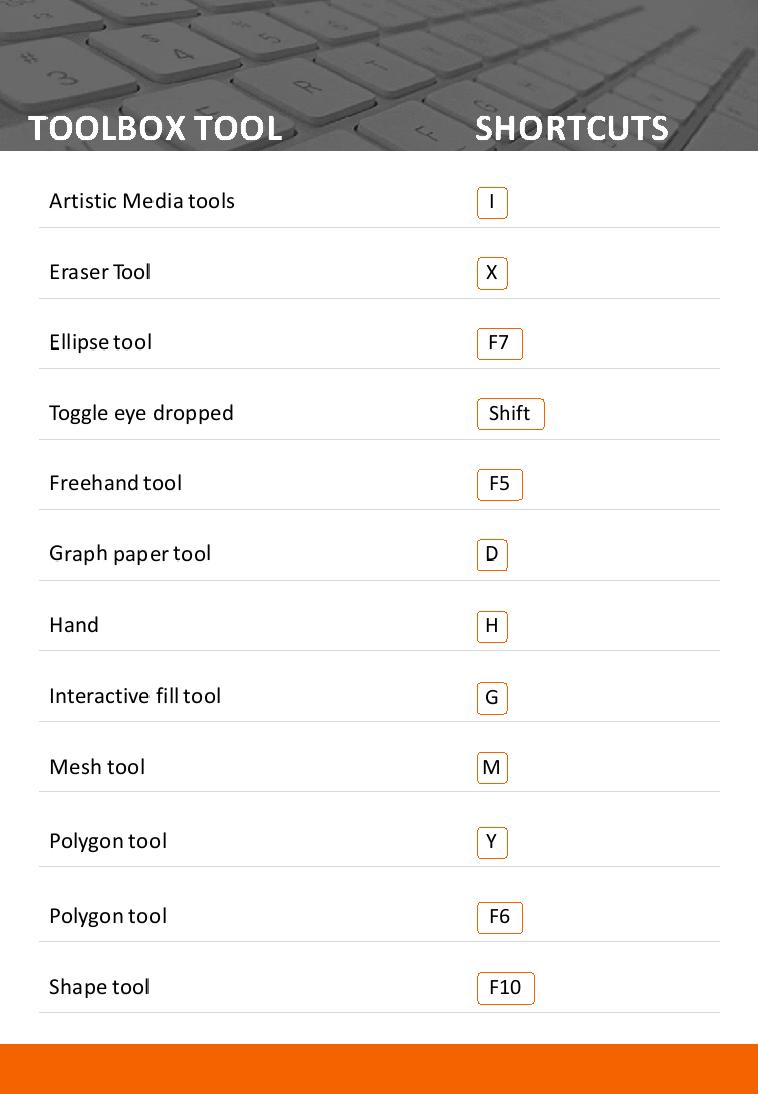
Coreldraw shortcut keys

Coreldraw shortcut keys

Coreldraw shortcut keys

Coreldraw shortcut keys

Coreldraw shortcut keys

Coreldraw shortcut keys

Coreldraw shortcut keys

Coreldraw shortcut keys

Coreldraw shortcut keys

Coreldraw shortcut keys

Coreldraw shortcut keys

Coreldraw shortcut keys

Coreldraw shortcut keys

Coreldraw shortcut keys

Coreldraw shortcut keys

Coreldraw shortcut keys

Coreldraw shortcut keys


Thursday, July 22, 2021

TUTORIALS HOW TO EDGE TO CURVE CORELDRAW TUTORIALS

TUTORIALS ON HOW TO EDGE TO CURVE CORELDRAW TUTORIALS


TUTORIALS HOW TO EDGE TO CURVE CORELDRAW TUTORIALS
TUTORIALS ON HOW TO EDGE TO CURVE CORELDRAW TUTORIALS


Monday, July 5, 2021

🎨 Free Cutting Vector Set for Vehicles (CDR Format)

🎨 Free Cutting Vector Set for Vehicles (CDR Format)

Free Vector Set for Sticker Cutting - CorelDraw CDR

100% Vector File | CDR Format | Free for Download

This free cutting vector pack is ideal for all vehicle sticker modifications. Files are in CorelDraw (.CDR) format. You can also convert to EPS using FlexiSign, Photoshop, or Illustrator.

🚗 Vehicle Types Included:

  • Car: Windshields, sides, back glass
  • Bike: Tank, visor, wheel rim, back flop
  • Bus / Van: Front, side, glass, rear body
  • Auto / Lorry / Load Vehicle: Full body vector sections
  • Mini Bus: Complete glass and body coverage

✨ Special Vector Categories:

Includes Tattoo-style vectors, God images, Dragon, Superman, Joker, Tiger, Bull, Royal Enfield logo, and many more!

---

Please wait 25 seconds to access the download…

Saturday, July 3, 2021

Grafix-komban New Number Set

Grafix-komban New Number Set


Grafix-komban New Number Set

 New Number Set get your Computer

Download Now

Featured Post

தென்னிந்திய ராயல் போர்ட்ரெய்ட் AI Prompts – 50 Face Swap Ready Cinematic Prompts for Families | 8K Quality

 # உங்கள் குடும்பத்தை வரலாற்றுப் புகழ்மிக்க தென்னிந்திய அரச குடும்பமாக மாற்றுங்கள் — 50 AI Image Prompts with Face Swap Technology Cinematic...

Popular Posts